How to Create a Stream Schedule on Twitch (2026 Step-by-Step Guide)
Learn how to create and manage a Twitch stream schedule to grow your community, boost engagement, and stay consistent.
Quick answer: To create a stream schedule on Twitch, go to your Creator Dashboard, open Settings, then Channel, then Schedule, and click Add Stream. Set a title, category, start time, and whether it repeats weekly. Viewers can then turn on Remind Me notifications so they get an alert before you go live.
If you want to grow your audience and keep viewers coming back, consistency is key. One of the best ways to do this is by setting up a Twitch stream schedule directly on your channel. This guide walks you through everything you need to know about creating, editing, and managing your Twitch schedule so your viewers always know when you’ll be live. We also made a video walkthrough, which you can find here.
Why Should You Set Up a Twitch Stream Schedule?
A Twitch schedule is more than just a calendar. It’s a commitment to your community. By showing viewers when you’ll be live, you:
Build consistency and trust.
Make it easier for fans to plan their time around your streams.
Increase viewer retention and engagement.
Create anticipation for special events or themed streams.
Whether you stream once a week or every day, having a set schedule helps your audience stay connected.
How Do You Schedule a Stream on Twitch?
Follow these steps to add a schedule to your Twitch channel:
1. Go to Your Creator Dashboard
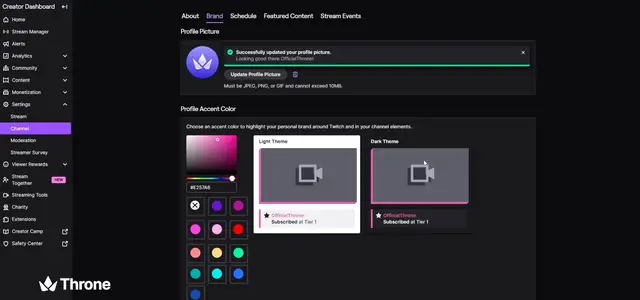
Log into Twitch and head to your Creator Dashboard. Navigate to:
Settings → Channel → Schedule
2. Add a Scheduled Stream
Click “Add Stream” and fill in the details:
Stream Title: Example: Marvel Rivals Fridays
Category: Choose the game or activity (e.g., Marvel Rivals, Call of Duty, Just Chatting)
Date & Time: Set your stream start time
Repeat Option: Choose if it should repeat weekly (great for regular streaming days)
👉 Example: Every Friday at 1 PM streaming Marvel Rivals.
3. Save and Publish Your Twitch Schedule
Once saved, your schedule shows up directly under your channel page so viewers can easily see your next streams.
What Do Viewers See on Your Twitch Schedule?
When you create a Twitch stream schedule, your audience gets:
Remind Me Notifications: Viewers can opt in for alerts before you go live.
Shareable Schedule Link: Fans can copy and share your schedule with others.
At-a-Glance Streaming Times: New visitors instantly know when you’re live.
This makes it easier to build hype around your streams and keep your audience engaged.
How Do You Edit or Delete Your Twitch Schedule?
Twitch gives creators full control over their schedules:
Edit Scheduled Streams: Adjust the title, time, or category anytime.
Delete Individual Streams: Remove specific scheduled events using the trash icon.
Enable Vacation Mode: Going offline for a few days or weeks? Turn on vacation mode so your audience knows you’re away.
Delete Entire Schedule: Start fresh with a new streaming routine.
What Makes a Good Twitch Stream Schedule?
Stay consistent. Choose times you can realistically maintain.
Use themed streams (e.g., Friday Night Horror or Sub Sunday) to create excitement.
Announce schedule updates on social media to maximize reach.
Plan ahead for special events, game launches, or collaborations.
Add your schedule to a Twitch panel next to your wishlist link, so fans know when to show up for milestone streams.
Is a Twitch Schedule Worth Setting Up?
A Twitch stream schedule is a powerful tool for building your community, boosting retention, and keeping viewers informed. By taking just a few minutes to set it up in your Creator Dashboard, you make it easier for fans to support your channel and never miss a stream.
So don’t wait. Set up your Twitch schedule today and start streaming with consistency and confidence.
Frequently Asked Questions
Where is the schedule on Twitch? In your Creator Dashboard, under Settings, then Channel, then Schedule.
Can viewers get a reminder before I go live? Yes. Viewers can turn on Remind Me notifications for any scheduled stream.
What if I need a break from streaming? Turn on vacation mode so your schedule shows you’re away.
Fans who know when you’re live are the ones who show up for the big moments. Give them a way to celebrate with you. Start Your Wishlist